
How to Hide Your IP Address on Desktop and Mobile Devices

How to Hide Your IP Address on Computer and Mobile Devices

Every time you connect your computer or smartphone to the internet, your device is assigned a unique digital string known as an IP (Internet Protocol) address. Acting much like a physical return address on a letter, your IP address identifies your location and device on the global web. While this routing system makes digital communications possible, it also exposes your online habits, physical whereabouts, and identity to Internet Service Providers (ISPs), advertisers, network administrators, and cybercriminals.

Hiding your IP address is one of the most fundamental and effective steps you can take to safeguard your digital privacy. In this comprehensive guide, we will explore why hiding your IP matters, the best methods to mask it across desktop and mobile devices, and step-by-step instructions for each platform.


1. Why Should You Hide Your IP Address?

Before diving into the technical solutions, it is crucial to understand what your public IP address reveals and why masking it enhances your digital hygiene:

  • Prevent ISP Tracking and Data Harvesting: ISPs routinely track the websites you visit and can sell your browsing metadata to third-party advertisers. Masking your IP prevents them from linking your activity directly to your household.
  • Bypass Geo-Restrictions and Censorship: Many streaming services, news portals, and social platforms restrict content based on your geographic region. Changing your IP address allows you to access content as if you were located in another country.
  • Protect Your Privacy on Public Wi-Fi: Unsecured public networks at airports or coffee shops expose your device to local eavesdropping. Masking your IP—especially via encrypted tunnels—protects your data payloads from local hackers.
  • Avoid Digital Profiling and Targeted Ads: Marketers build comprehensive behavioral profiles linked to your IP address to target you with personalized advertising and dynamic pricing.

2. Top Methods to Hide Your IP Address

There are several distinct technologies available to mask your IP address, each balancing privacy, encryption, speed, and ease of use.

Method A: Virtual Private Network (VPN) — The Best All-Rounder

A VPN creates an encrypted, secure tunnel between your device and a remote server operated by the VPN provider. All your internet traffic passes through this tunnel, meaning destination websites only see the IP address of the VPN server, not your real one.

Your Device (Real IP Exposed) Encrypted VPN Tunnel VPN Server (New Virtual IP) Target Website (Sees VPN IP)
Figure 1: How a VPN encrypts your traffic and substitutes your real IP address.

Looking for the Most Reliable VPN Service?

Compare the top-rated VPN providers tested for security, speed, and privacy.

View the Best VPN Ranking

Method B: Proxy Servers — Quick Application-Level Masking

A Proxy Server acts as an intermediate broker specifically for web browser traffic or individual apps. Unlike a VPN, proxies generally do not encrypt your overall connection and only handle traffic from the configured application.

Browser Plain Request Proxy Server Forwards Request Website
Figure 2: A proxy server intercepts and reroutes web requests without full system encryption.

Method C: The Tor Network — Maximum Anonymity

The Tor (The Onion Router) network routes your traffic through three volunteer nodes worldwide, adding multi-layered encryption at every jump. It provides unparalleled anonymity, though at the cost of connection speed.

Pro Tip: For general everyday use (streaming, shopping, banking), a reputable commercial VPN is the optimal balance of speed and privacy. For high-stakes privacy or whistleblowing, Tor is the gold standard.

3. How to Hide Your IP on Desktop (Windows & macOS)

Option 1: Using a VPN (Recommended)

  1. Select a trustworthy, no-logs VPN provider (e.g., NordVPN, ExpressVPN, or Proton VPN).
  2. Download and install the official desktop app for Windows or macOS.
  3. Launch the application and log into your account.
  4. Click Quick Connect or select a specific server location (e.g., United States or Germany).
  5. Once connected, your original IP address is hidden. You can verify this by visiting websites like icanhazip.com or dnsleaktest.com.

Option 2: Using Tor Browser on PC or Mac

  1. Visit the official Tor Project website (torproject.org) and download the installer.
  2. Install and launch the Tor Browser.
  3. Click Connect on the landing screen to join the Tor network.
  4. All browsing conducted inside this specific browser window will now hide your IP address.

4. How to Hide Your IP on Mobile Devices (Android & iOS)

Method 1: Mobile VPN Apps

Using a VPN on your mobile phone provides system-wide protection for all installed apps, mobile games, and browsers:

  1. Open the Google Play Store (Android) or Apple App Store (iPhone).
  2. Search for your chosen VPN provider’s official app.
  3. Install the app and sign in.
  4. When prompted, grant permission for the app to add a VPN configuration to your mobile system.
  5. Tap Connect. A small VPN icon will appear in your status bar, confirming your real IP is masked.

Method 2: Built-in iOS Feature — Apple Private Relay

If you are an iPhone user with an active iCloud+ subscription, Apple provides a built-in privacy service called Private Relay:

  1. Open the Settings app on your iPhone.
  2. Tap your Apple ID name at the top.
  3. Select iCloud and scroll down to Private Relay.
  4. Toggle Private Relay to On.

Note: Private Relay specifically masks your IP within Safari browsing and unencrypted app traffic, but does not route all system traffic like a full VPN.

Method 3: Tor on Mobile Devices

  • On Android: Download the official Tor Browser directly from the Google Play Store.
  • On iOS: Use the Onion Browser, an open-source, Tor Project-endorsed browser available on the App Store.

5. Common Pitfalls to Avoid

Hiding your IP address is highly effective, but avoid these common operational mistakes:

  • Free VPN Services: Avoid shady “free” VPN apps on mobile app stores. Many monetize by harvesting your personal browsing data, injecting ads, or even selling your bandwidth.
  • DNS and WebRTC Leaks: Occasionally, web browsers leak your original IP address through WebRTC features. Periodically run tests at browserleaks.com/webrtc to ensure no IP exposures occur.
  • Logging into Personal Accounts: If you hide your IP address but simultaneously log into your personal social media accounts, platforms can still link your physical identity to your browsing session.

Conclusion

Masking your IP address is a fundamental cornerstone of modern digital privacy. Whether you choose a full-featured VPN service, the multi-layered Tor Browser, or browser proxies, taking control of your IP address restores your anonymity, protects your location, and keeps your online activities safe from prying eyes on both computers and mobile devices.
What is the Tor Network? How It Works, and Why It Matters

What is the Tor Network? How It Works and What It Is Used For

In an era of pervasive digital surveillance and aggressive data harvesting, online privacy has shifted from a default state to a rare luxury. Every website you visit, link you click, and query you type into a search engine leaves a digital footprint that can be tracked, cataloged, and monetized by internet service providers (ISPs), tech corporations, and governments alike. For individuals seeking to reclaim their right to digital anonymity, the Tor network serves as one of the most powerful and sophisticated privacy technologies ever created.

Short for The Onion Router, Tor is a decentralized network designed to conceal a user’s location and internet activity from anyone attempting traffic analysis. Originally developed by the United States Navy to protect sensitive intelligence communications, Tor has since evolved into a free, open-source global infrastructure used by millions of privacy-conscious citizens, journalists, activists, and cybersecurity professionals every day.


1. Understanding the Core Concept: What is Tor?

At its fundamental level, Tor is a free, global software network that anonymizes web browsing. Unlike standard web browsing—where your device establishes a direct connection to a website’s server, revealing your unique IP address—Tor channels your internet traffic through a random pathway of volunteer-operated servers known as relays or nodes.

By routing your traffic through multiple intermediate layers, Tor effectively breaks the chain of identification between your device and your online destinations. To any server you connect to through Tor, your request appears to originate from a completely different part of the world, masking your physical location and internet service provider.

Key Distinction: Tor is not merely a VPN (Virtual Private Network). While a VPN relies on a single centralized company that can technically see all your web traffic, Tor uses a trustless, decentralized network where no single node knows both who you are and where you are going.

2. How the Tor Network Works: Onion Routing

The name “Onion Routing” is a precise metaphor for the technical process behind Tor. Just as an onion consists of multiple distinct layers, data transmitted through the Tor network is wrapped in multiple layers of cryptographic encryption before being sent across the internet.

The Three-Node Circuit

When you request a webpage using the Tor Browser, the client software automatically constructs a circuit consisting of three randomly selected Tor relays:

  • Entry Node (Guard Relay): The entry point into the network. This node can see your real IP address, but because the data inside is heavily encrypted, it cannot read the content of your traffic or identify your final destination.
  • Middle Node (Relay): The bridge layer. This node receives traffic from the Entry Node and passes it forward to the Exit Node. Crucially, the Middle Relay only knows the IP address of the node directly before it and directly after it. It knows neither your identity nor your ultimate target.
  • Exit Node: The final destination relay within the Tor network. The Exit Node peels away the final layer of encryption and dispatches the request to the destination website on the open web. The destination website sees only the IP address of the Exit Node.
User Client (Your Device) Entry Node (Sees Your IP) Middle Node (Isolated Layer) Exit Node (Decrypts Data) Target Web (e.g. Website)
Figure 1: Path of an encrypted request traveling through the Tor circuit.

The Layered Encryption Mechanism

Before data leaves your device, your Tor software generates three distinct encryption keys—one for each node in the circuit. The data packet is encrypted thrice in reverse order:

  1. Encrypted with the Exit Node’s key.
  2. Encrypted again with the Middle Node’s key.
  3. Encrypted a third time with the Entry Node’s key.

As the packet travels through the circuit, each relay “peels” away its designated layer of encryption using its own key. The Entry Node peels off the outer layer and discovers where to send the packet next (the Middle Node). The Middle Node peels off the second layer and finds the address for the Exit Node. Finally, the Exit Node peels off the innermost layer to reveal the underlying request, forwarding it to the web server without ever knowing who sent it.

Layer 1: Entry Key Layer 2: Middle Key Layer 3: Exit Key DATA
Figure 2: Conceptual representation of multi-layered onion encryption.

3. What is the Tor Network Used For?

While mainstream media often links Tor exclusively to illicit online activities, the reality is far more nuanced. Tor is a neutral privacy tool utilized by a vast spectrum of legitimate users globally.

A. Circumventing Censorship and Repression

In nations governed by authoritarian regimes, state-sponsored internet censorship restricts access to independent news, educational content, and global social media platforms. Tor provides citizens in these regions with an indispensable tool to bypass digital blockades, enabling access to an unfiltered global internet.

B. Protecting Journalists, Dissidents, and Whistleblowers

Investigative reporters rely heavily on Tor to communicate securely with sources without leaving digital trails that could endanger lives. Platforms like SecureDrop use the Tor network to allow whistleblowers to anonymously submit documents regarding corporate corruption or governmental abuses.

C. Everyday Consumer Privacy

For average internet users, Tor serves as a shield against intrusive tracking. Commercial ad networks, ISP surveillance, and price-discrimination practices can all be mitigated by routing daily browsing traffic through the network.

D. Onion Services (The “Dark Web”)

Tor also supports Onion Services—specialized websites hosted within the Tor network using the .onion domain extension. Unlike standard websites, Onion Services keep both the visitor’s and the host’s location hidden. While some Onion Services operate as illicit marketplaces, many major organizations (such as The New York Times, ProPublica, and DuckDuckGo) maintain official .onion sites to provide safe, surveillance-free access to readers worldwide.

4. Limitations and Misconceptions of Tor

Despite its strength, Tor is not an impenetrable shield. Understanding its limitations is vital for maintaining security:

  • Speed Degradation: Bouncing traffic across three international volunteer servers inevitably introduces latency, making Tor unsuitable for high-bandwidth tasks like 4K video streaming or online gaming.
  • Unencrypted Exit Traffic: If you visit an HTTP (non-HTTPS) website over Tor, the operator of the Exit Node can inspect your unencrypted data payload.
  • Operational Security (OpSec): Tor masks your connection, but it cannot protect you if you log into personal accounts (like Google or Facebook) or download unverified executable files that reveal your real identity.

Conclusion

The Tor network remains one of the most vital components of the modern privacy landscape. By leveraging the principles of onion routing, Tor offers a robust mechanism for decentralizing digital trust and safeguarding fundamental human rights—specifically freedom of expression and access to information in an increasingly monitored digital world.

Best Free VPN in 2026: Top Secure Choices You Can Actually Trust

Finding a reliable free VPN in 2026 can feel like walking through a minefield. While dozens of apps promise complete online anonymity without costing a dime, the stark reality is that many “free” VPN services monetize your personal data, inject intrusive advertisements into your browsing sessions, or restrict speeds so severely that streaming or basic web browsing becomes virtually impossible. However, a select group of trustworthy providers still offers genuine protection without hidden fees.

ENCRYPTED DATA TUNNEL • 2026 PRIVACY STANDARD

Why Most Free VPNs Are Dangerous in 2026

Running a global server network requires millions of dollars in infrastructure maintenance, energy, and software engineering. When a company offers a service for free without a subscription tier, they must generate revenue elsewhere. Industry research reveals that over 60% of free VPN apps available on mobile app stores contain embedded trackers, log user activity, or sell bandwidth to third-party data brokers.

To avoid compromised security, you should only consider “freemium” VPNs. These are free versions offered by reputable, paid VPN providers as a promotional tool to showcase their infrastructure, hoping you will eventually upgrade to a premium plan.


The Top 3 Best Free VPN Services in 2026

1. Proton VPN Free – The Gold Standard with Unlimited Data

Proton VPN continues to dominate the privacy landscape in 2026. Based in Switzerland, a country known for strict privacy laws, Proton VPN offers an unprecedented feature: unlimited data allowance. Unlike virtually all other free options, Proton does not cap your monthly usage.

  • Data Limit: Unlimited
  • Server Locations: 5 countries (including US, Netherlands, Japan)
  • Strict No-Logs Policy: Independently audited
  • Best For: Daily browsing, long privacy sessions, and always-on protection
Global Free Server Locations

2. Windscribe – Ideal for Customization and Multiple Devices

Windscribe remains a fan favorite thanks to its generous monthly data cap and robust built-in ad blocker (ROBERT). Free users receive 10 GB of data per month upon confirming their email address, alongside access to servers in over 10 countries.

  • Data Limit: 10 GB / month
  • Server Locations: 10+ countries
  • Key Feature: Built-in malicious site blocker and tracker protection

3. PrivadoVPN – High Speeds and Streaming Capabilities

If your primary goal is fast speeds and accessing regional media content, PrivadoVPN is a stellar choice. Headquartered in Switzerland, it provides free access to 10 GB of data per month at full connection speeds without artificial throttling.


Free vs. Paid VPNs: Key Differences Compared

While trustworthy free VPNs protect your personal IP address and encrypt your internet traffic, they inevitably come with built-in limitations designed to encourage upgrading to a paid tier.

Feature Free VPN Tier Paid Premium VPN
Monthly Data Capped (0.5 GB – 10 GB or limited speed) 100% Unlimited Data
Server Network 3 to 10 countries 60 to 100+ countries
Connection Speed Moderate (Server Congestion) Ultra-Fast (10 Gbps servers)
Streaming & Torrenting Restricted or Blocked Fully Supported (4K Quality)

Looking for the Ultimate Paid & Free VPNs?

Check out our fully tested and updated top recommendations for streaming, torrenting, and maximum security.

View Full VPN Ranking →

How to Choose the Right Free VPN for Your Needs

Selecting the best free service depends heavily on your daily online habits:

  1. For Remote Work & Public Wi-Fi: Choose Proton VPN because unlimited data ensures your entire workday remains encrypted without sudden disconnects.
  2. For Browsing Heavy Webpages: Choose Windscribe to take advantage of integrated ad-blocking that speeds up webpage rendering.
  3. For Fast Downloads: Choose PrivadoVPN to maximize your bandwidth speed during the available 10 GB allowance.

Final Verdict

In 2026, privacy is no longer a luxury—it is a necessity. While a free VPN cannot completely replace a premium subscription for heavy streaming or torrenting, services like Proton VPN, Windscribe, and PrivadoVPN prove that you don’t have to sacrifice your personal safety just to save money. Stick to verified freemium services, avoid shady “100% free” mobile apps, and enjoy secure browsing everywhere you go.

What is a VPN? How It Works and Why You Need One

What is a VPN? How It Works and Why You Need One

In an era defined by ubiquitous connectivity, online privacy has transitioned from a niche luxury into a critical necessity. Every time you connect to the internet, your device continuously exchanges personal data, geographical location metrics, and unique network identifiers with servers across the globe. Without protective boundaries, this information is easily accessible to Internet Service Providers (ISPs), advertisers, cybercriminals, and network eavesdroppers.

This is where a Virtual Private Network (VPN) becomes essential. A VPN acts as an invisible shield for your internet connection, creating a secure, encrypted conduit between your device and the broader web. Whether you are browsing on public Wi-Fi, working remotely, or attempting to bypass regional content restrictions, understanding how a VPN operates is foundational to modern digital security.

What is a VPN?

A VPN, short for Virtual Private Network, is an encrypted security tool designed to protect your internet connection and online privacy. In simple terms, a VPN establishes a private, software-defined network tunnel across a public internet connection.

When you browse the web normally without a VPN, your data requests travel directly from your device (computer, smartphone, or tablet) through your local Internet Service Provider to the target website. Because this traffic is exposed, your ISP and third parties can view your real IP address, observe which websites you visit, and log your bandwidth usage.

When a VPN service is enabled, your web traffic is rerouted through a remote server operated by the VPN provider. The data is scrambled using complex cryptographic algorithms before it leaves your device. As a result, destination websites no longer see your physical location or real IP address; instead, they interact only with the IP address of the VPN server.

Standard Connection (Unprotected) Your Device Exposed Data & Real IP ISP & Hackers (Logging Traffic) Website VPN Connection (Encrypted Tunnel) Your Device 🔒 Encrypted VPN Tunnel VPN Server (Masks IP) Website
Figure 1: Comparison between an unencrypted direct connection and a secure VPN tunnel.

How Does a VPN Work? The Core Mechanics

To grasp the underlying technology of a Virtual Private Network, it helps to break down its operation into three fundamental cryptographic mechanisms:

1. Encapsulation and Tunneling

When you send data across the web, it is broken down into small units called data packets. A VPN wraps each of your original data packets inside another secure outer packet—a process known as encapsulation. This creates a virtual “tunnel” through the public infrastructure of the internet, isolating your data from surrounding network traffic.

2. High-Grade Data Encryption

The contents of these encapsulated packets are mathematically encoded using encryption protocols (such as AES-256 or ChaCha20). AES-256 (Advanced Encryption Standard with a 256-bit key) is approved worldwide for securing classified government and military intelligence. Without the cryptographic key held by your device and the VPN server, converting this scrambled data back into readable text would take billions of years using current computing technology.

3. IP Address Masking and Rerouting

Your Internet Protocol (IP) address serves as your digital return address, identifying your computer’s exact network location. Once your encrypted traffic reaches the selected VPN server, the server decrypts the request and forwards it to the target website using its own IP address. To the destination server, you appear to be browsing from the physical location of the VPN server—whether that server is situated in Tokyo, London, or New York.

What is a VPN Used For? Key Benefits

While Virtual Private Networks were originally created for corporate employees to connect safely to enterprise office networks from remote locations, personal VPN usage has surged globally. Below are the primary applications of VPN technology today:

🛡️ Public Wi-Fi Blocks Eavesdropping 🌐 Bypass Geo-Blocks Access Global Media 👁️ ISP Anti-Tracking Prevents History Logging 💼 Secure Work Protects Company Data
Figure 2: Four primary everyday security and privacy use cases for a VPN.

1. Security on Public Wi-Fi Networks

Unsecured Wi-Fi hotspots in coffee shops, airports, and hotels are notorious hunting grounds for hackers. Cybercriminals can execute Man-in-the-Middle (MitM) attacks or deploy rogue hot-spots to intercept unencrypted traffic. A VPN encrypts all data leaving your device, ensuring that even if an attacker intercepts your connection on a public network, they capture only unreadable gibberish.

2. Preventing ISP Tracking and Bandwidth Throttling

In many jurisdictions, Internet Service Providers are legally permitted to track your browsing history and sell aggregated consumer profile data to advertisers. Furthermore, ISPs frequently employ bandwidth throttling—deliberately slowing down your connection speed when they detect high-bandwidth activities like 4K video streaming or online gaming. A VPN prevents your ISP from seeing what content you are consuming, effectively mitigating targeted throttling.

3. Bypassing Geographical Censorship and Content Blocks

Streaming services, news networks, and platforms often restrict access based on international licensing agreements or local government censorship. By routing your connection through a VPN server in another country, you adopt a local IP address from that region, allowing you to access geographically restricted streaming libraries or bypass restrictive internet firewalls when traveling abroad.

4. Safeguarding Sensitive Financial Transactions

When executing mobile banking transactions, viewing confidential work documents, or making credit card payments online, an active VPN connection ensures an added layer of security against credential harvesting and malicious network sniffing.

Modern VPN Protocols Explained

A VPN protocol is the set of instructions and mathematical rules that determine how the secure tunnel is built and managed. Choosing the right protocol strikes a balance between speed, stability, and cryptographic strength:

Protocol Primary Advantage Best Used For
WireGuard® Next-generation speed, lightweight code, fast reconnection. Mobile devices, gaming, daily high-speed browsing.
OpenVPN Open-source, battle-tested security, highly configurable. Desktop computers, maximum security requirements.
IKEv2 / IPsec Extremely stable when switching networks (e.g., Wi-Fi to cellular). Smartphones and tablets on the move.

💡 Understanding the “No-Logs” Policy

Because all your internet traffic flows through your VPN provider’s infrastructure, choosing a trustworthy service is critical. Look for reputable providers that undergo independent third-party security audits confirming a strict No-Logs Policy—meaning the provider retains zero activity records, timestamp logs, or connection histories on their servers.

Limitations: What a VPN Cannot Do

While a Virtual Private Network is an indispensable cybersecurity tool, it is not a complete cure-all for digital safety. To maintain realistic security expectations, keep in mind:

  • No Protection Against Malware: A VPN encrypts your connection, but it will not prevent you from downloading malicious files, ransomware, or keyloggers if you click unsafe links.
  • Social Media Tracking: If you stay logged into your personal accounts (such as Google, Facebook, or Amazon) while connected to a VPN, those companies can still link your online browsing activity directly to your profile.
  • Slight Speed Reduction: Because encrypting data and routing it through remote servers introduces latency, you may experience a minor decrease in download speeds depending on server proximity.

Summary Checklist for Beginners

  1. Install a trusted VPN app on all your daily devices (PC, Mac, iOS, Android).
  2. Always turn on the VPN when connecting to public or unencrypted Wi-Fi networks.
  3. Select a server geographically close to your real location for optimal browsing speed.
  4. Enable the Kill Switch feature in your VPN app to automatically block internet traffic if the VPN connection drops unexpectedly.

Conclusion

A Virtual Private Network is one of the most effective tools available for preserving personal privacy, securing sensitive communications, and restoring digital autonomy. By creating an encrypted tunnel and masking your real IP address, a VPN ensures that your private online activity remains strictly between you and the web. When combined with safe browsing habits, multi-factor authentication, and antivirus software, a VPN forms a critical cornerstone of modern cybersecurity defense.

Incognito Mode: How to Turn It On/Off and What It Really Hides

Incognito Mode: How to Toggle It and What It Really Hides

Every major web browser features a specialized mode designed for private browsing. Whether it is called Incognito Mode in Google Chrome, Private Browsing in Apple Safari and Mozilla Firefox, or InPrivate in Microsoft Edge, millions of users enable this feature daily. Many believe that opening an incognito window renders them completely invisible to the outside world—a digital cloak of invisibility shielding them from internet service providers, hackers, advertisers, and employers.

However, the term “Incognito” is somewhat misleading. While private browsing offers valuable localized protection, it was never engineered to provide full anonymity on the wider web. This comprehensive guide breaks down how to toggle Incognito mode on various devices, clarifies what data it actually conceals, and exposes the common privacy misconceptions surrounding its use.

Local Device (Protected) ✔ Clears Browsing History ✔ Deletes Session Cookies ✔ Erases Form Autofill Data External Network (Exposed) ✖ Visible to Internet Service Providers ✖ Tracked by Employer / School Network ✖ IP Address Remains Public
Figure 1: Incognito Mode protects local hardware data but leaves external network activity visible.

What Incognito Mode ACTUALLY Hides

The primary purpose of Incognito mode is local device protection. When you use a standard browser window, your software constantly writes data to your computer’s local drive. Incognito mode creates a temporary, isolated session that prevents this local record from being stored once the window is closed.

Specifically, during an active Incognito session, your browser will temporary record data, but the moment you close all private windows, it instantly erases:

  • Browsing History: Web addresses (URLs), page titles, and timestamps of visited sites are not added to your permanent local log.
  • Cookies and Site Data: Temporary tracking files created by websites during your session are completely wiped upon exit. This means you will be automatically logged out of any accounts you signed into while incognito.
  • Form Input and Autofill: Information entered into web forms (names, physical addresses, login names) is discarded and not saved for future autofill suggestions.
  • Search History: Search queries typed into address bars are not stored in the browser’s local memory cache.

Practical Use Case: Incognito mode is ideal when booking flights to avoid dynamic price inflation based on cookies, searching for a secret birthday present on a shared family computer, or logging into your email temporarily on a friend’s device.

What Incognito Mode DOES NOT Hide

Despite popular belief, Incognito mode does not encrypt your traffic, change your IP address, or bypass network-level logging. To understand its limitations, consider who can still monitor your online footprint when Incognito is active:

1. Your Internet Service Provider (ISP)

Every packet of data leaving your router passes through your ISP (such as Comcast, Vodafone, or Deutsche Telekom). Because Incognito mode operates solely inside your web browser, your ISP still logs every domain you connect to, your IP address, and the exact timestamps of your connections.

2. Network Administrators (Work or School)

If you connect to a corporate Wi-Fi or school network, administrators use DNS monitoring, firewall logs, and network gateways to track internet usage. Opening an Incognito window on a company laptop does not prevent network routers from recording that you visited social media, streaming sites, or job boards.

3. Websites and Web Services

When you visit a website, that server identifies your connection by its IP address. Unless you log into a Virtual Private Network (VPN) or use privacy networks like Tor, web servers know your physical geographical location and can trace your session activity. Furthermore, if you sign into your Google, Amazon, or Facebook account inside an Incognito tab, those platforms instantly tie your browsing behavior directly to your personal profile.

Browser (Incognito Active) Router / ISP Logs Requests Web Server Sees IP Address Visible Traffic Unmasked Connection
Figure 2: Data path showing how Incognito traffic remains fully visible to network infrastructure and target servers.

How to Enable Incognito Mode (Desktop & Mobile)

Activating private browsing is quick and uniform across almost all modern platforms. Below are the keyboard shortcuts and manual navigation methods for major web browsers:

Browser Windows / Linux Shortcut macOS Shortcut Manual Access
Google Chrome Ctrl + Shift + N Cmd + Shift + N Click 3 dots (top right) → New Incognito Window
Mozilla Firefox Ctrl + Shift + P Cmd + Shift + P Click 3 lines (top right) → New Private Window
Microsoft Edge Ctrl + Shift + N Cmd + Shift + N Click 3 dots (top right) → New InPrivate Window
Apple Safari N/A Cmd + Shift + N File Menu → New Private Window

On iOS and Android Devices:

  • Chrome Mobile: Open the app, tap the three dots icon next to the address bar, and select “New Incognito tab.”
  • Safari iOS: Tap the Tab icon (two overlapping squares), tap the center menu dropdown showing tab count, and choose “Private.”

How to Turn Off Incognito Mode

Closing an Incognito session is simple: close all open Incognito tabs or windows. Once the last private tab is closed, the browser automatically destroys all temporary cookies, site storage, and session caches associated with that window.

⚠️ Common Misconception: “Closing the Tab Is Enough”

If you have multiple Incognito windows open simultaneously, closing just one window will not clear session cookies. All Incognito tabs share a single underlying private session. To ensure all data is purged, you must exit every open Incognito tab across your desktop or smartphone.

Incognito vs. VPN vs. Tor: Understanding Privacy Layers

If you require genuine anonymity on the web, Incognito mode alone is insufficient. Cybersecurity experts use a combination of technologies depending on the level of protection needed:

Privacy Tool Comparison:

  • Incognito Mode: Clears local browser logs, cookies, and search forms on your physical device. Does not hide your IP address or encrypt connection data.
  • Virtual Private Network (VPN): Encrypts all network traffic leaving your device and routes it through a secure remote server. Hides your real IP address from websites, ISPs, and network admins.
  • Tor Browser: Routes your internet traffic through a decentralized, multi-layered encrypted onion network. Provides high-level anti-surveillance protection, though it significantly slows down browsing speeds.

Summary

Incognito mode is a convenient local cleanup tool, not a stealth cloak. It excels at preventing friends, family members, or coworkers who share your device from seeing your recent web activity. However, it offers zero protection against external network surveillance, Internet Service Providers, or sophisticated online tracking trackers. For true network-level privacy, combine Incognito mode with a trusted VPN and privacy-focused security tools.

Understanding Phishing: Mechanics, Vectors, and Preventive Strategies

Understanding Phishing: How It Works and How to Protect Yourself

In the contemporary digital threat landscape, technical defenses such as firewalls, end-to-end encryption, and multi-layered access controls have become increasingly robust. Consequently, cybercriminals rarely attempt to force their way through complex cryptographic barriers. Instead, they exploit the most accessible vulnerability in any security infrastructure: the human element. This tactic is known as phishing, and it remains the primary entry point for major data breaches, identity theft, and corporate financial fraud worldwide.

What is Phishing?

The term phishing is an adaptation of the word “fishing.” The metaphor is precise: attackers cast a digital lure—disguised as an authentic message—and wait for unsuspecting users to take the bait, surrendering sensitive information or executing unauthorized software.

At its core, phishing is a form of social engineering. It relies on psychological manipulation rather than system exploits. Attackers impersonate trusted entities—such as commercial banks, logistics providers, government agencies, streaming services, or internal corporate IT departments—to trick victims into disclosing:

  • Account Credentials: Usernames, passwords, and security answers for email, social media, or corporate portals.
  • Financial Information: Credit card numbers, CVV codes, bank account details, and PINs.
  • Personally Identifiable Information (PII): Social Security numbers, national IDs, and date of birth for identity theft.
  • Authentication Tokens: One-time passcodes (OTP), SMS verification codes, or multi-factor authentication (MFA) prompts.
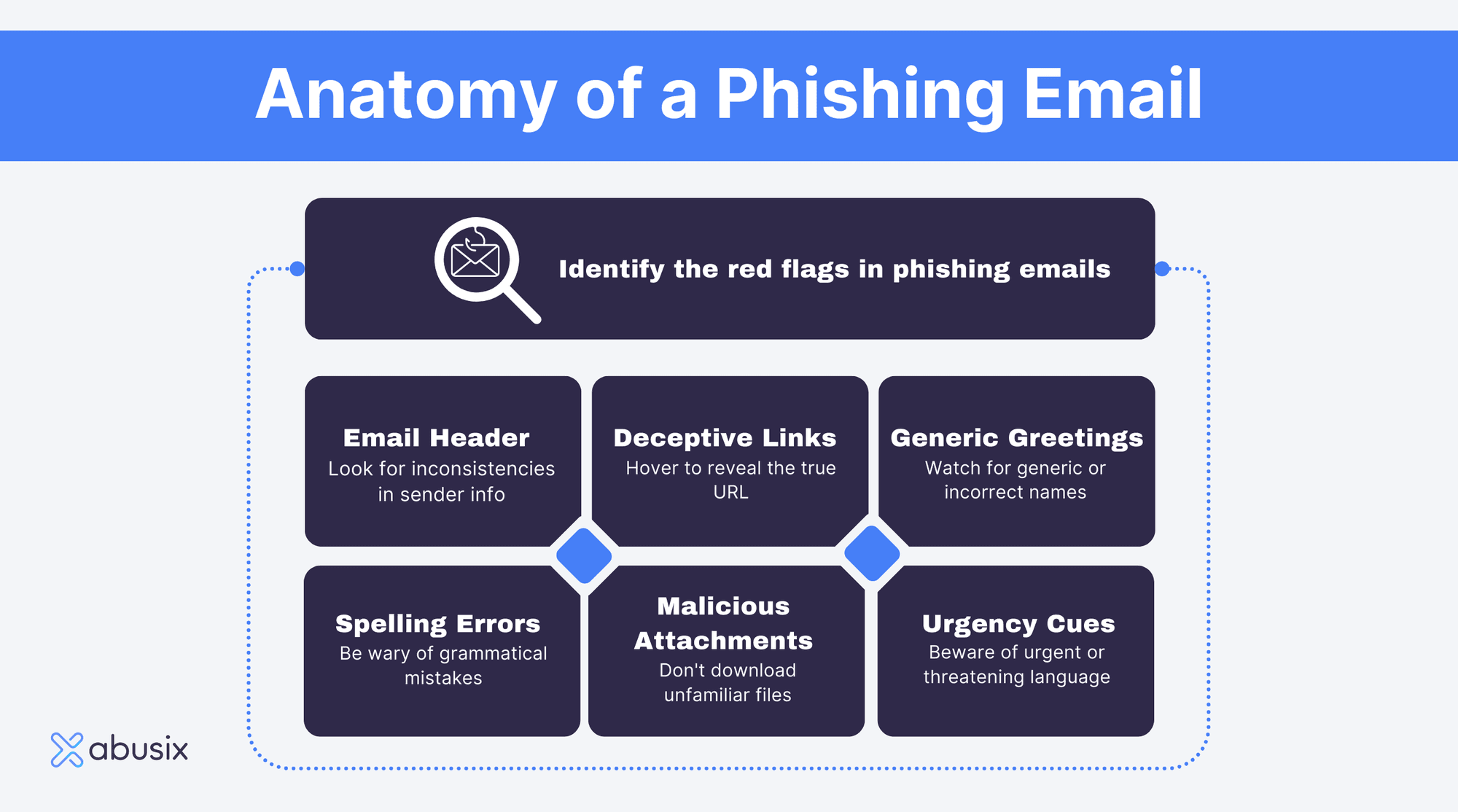
Anatomy of a phishing email showing fake headers and manipulated links
Figure 1: Anatomy of a typical phishing email—highlighting spoofed sender domains, artificial urgency, and malicious links.

The Anatomy of a Phishing Attack

While the specific themes used in phishing campaigns vary continuously, most attacks follow a standard four-stage lifecycle:

1. Crafting the Bait

The attacker designs a communication channel (such as an email, SMS, or direct message) that mimics an official notification. To maximize credibility, threat actors copy corporate branding, color palettes, footers, and official terminology. They often register domain names that visually resemble legitimate domains (a technique called typosquatting, such as paypa1.com instead of paypal.com).

2. Triggering Psychological Pressure

Phishing succeeds by short-circuiting critical thinking. Messages almost universally invoke one of three emotional triggers:

  • Urgency and Fear: “Your account will be suspended within 24 hours due to unauthorized activity.”
  • Financial Anxiety: “Unpaid delivery charge of $1.99 required to release your package.”
  • Greed or Curiosity: “Exclusive reward claim” or “Your tax refund is ready for disbursement.”

3. Redirection to a Spoofed Portal

The communication directs the recipient to click an embedded hyperlink or open an attachment. Clicking the link takes the target to a fraudulent web page designed to mirror a legitimate login portal or payment gateway.

4. Harvesting and Exploitation

When the victim enters their credentials into the fake form, the data is captured directly by the attacker’s server. In modern advanced phishing kits, the system relays credentials in real-time to the actual legitimate service, prompting the user for an MFA code which is then instantly intercepted to bypass two-factor authentication.

Conceptual illustration of cybersecurity threats and social engineering hooks
Figure 2: Digital hook vectors—how social engineering breaches corporate perimeter defenses.

Common Variants of Phishing Attacks

As security awareness has improved, phishing techniques have evolved beyond simple bulk spam emails into targeted, multi-channel operations:

Variant Vector Description
Smishing SMS / Text Messages Short messages containing malicious short-links regarding package deliveries, banking alerts, or verification notices.
Vishing Voice Calls Phone scams where attackers impersonate bank fraud departments, tax authorities, or tech support to extract sensitive details orally.
Spear Phishing Email / Messaging Apps Highly targeted attacks directed at specific individuals or organizations, customized using Open Source Intelligence (OSINT).
Whaling Email Spear phishing aimed at high-profile targets, such as C-level executives (CEOs, CFOs), to authorize high-value wire transfers.
Angler Phishing Social Media Impersonating customer support accounts on platforms like X (Twitter) or Facebook to divert unhappy customers to fraudulent support pages.

🚨 Key Red Flags to Identify Phishing Attempts

  • Discrepancies in Sender Domains: The display name says “Your Bank”, but the actual email address originates from a generic or mismatched domain (e.g., support@bank-security-update.com).
  • Generic Greetings: Use of vague terms like “Dear Customer” or “Valued Account Holder” instead of your name.
  • Hover-Link Mismatches: Hovering over a link reveals a destination URL that differs significantly from the hyperlinked text.
  • Unsolicited Attachments: Receiving unexpected .zip, .exe, or macro-enabled Office files.

How to Protect Yourself: Defense Strategies

Mitigating phishing risks requires combining technical controls with heightened personal vigilance.

Best Practices for Digital Protection:

  1. Verify the URL Address Bar: Before entering login credentials, carefully inspect the web address. Ensure exact spelling and correct domain structure.
  2. Implement Hardware-Based MFA: Use physical FIDO2/U2F security keys (such as YubiKeys) or authenticator apps rather than SMS-based verification, which can be intercepted or social-engineered.
  3. Avoid Direct Links in Alerts: If you receive a notification regarding an account suspension or payment issue, navigate independently to the service’s official app or website rather than clicking the link provided.
  4. Use a Dedicated Password Manager: Password managers automatically detect domain mismatches and will refuse to auto-fill credentials on spoofed phishing pages.
  5. Report Phishing Attempts: Forward suspicious messages to your organization’s IT security team, or report them to national cybersecurity centers (such as the CISA or Anti-Phishing Working Group).

Conclusion

Phishing remains a formidable threat due to its focus on manipulating human behavior rather than cracking software code. While spam filters and antivirus software offer significant protection, personal awareness remains the most effective defense. By recognizing red flags, verifying sender identities, and maintaining a healthy degree of skepticism, individuals and organizations can dramatically reduce their exposure to social engineering threats.